
How to Activate Live Chat in WordPress

Live chat lets a visitor ask a question from your WordPress site and get an answer while they are still on the page. Lucrativeit Support Ticket Plus includes that chat inside the same help desk you use for tickets, so a conversation that starts in the widget can be answered from the WordPress admin.
This guide follows the setup in the video: install the plugin, turn live chat on, optionally enable sound alerts and round-robin assignment, then place the shortcode on a page. The whole process takes a few minutes.
Before You Start
- A WordPress site where you can install plugins
- Lucrativeit Support Ticket Plus (free on WordPress.org), or the plugin ZIP from LucrativeIT
- At least one staff user who can open the WordPress admin and reply to chats
Part 1: Install Support Ticket Plus
1. Open the plugin directory
In WordPress admin, go to Plugins → Add New.
2. Search for LucrativeIT
In the search box, type LucrativeIT. Find Lucrativeit Support Ticket Plus in the results.
3. Install and activate
Click Install Now, then Activate. After activation, a Support Ticket Plus menu appears in the left admin sidebar.
Part 2: Turn On Live Chat
1. Open Live Chat settings
Go to Support Ticket Plus → Settings, then open the Live Chat tab.
2. Enable live chat
Set Enable Live Chat to on. The floating chat icon stays hidden until this option is enabled and the shortcode is on a published page.
3. Turn on sound alerts
Enable Chat Sound Alerts if you want an audible notice for new messages. Staff hear it on wp-admin screens, including Live Chat and My Chats. Visitors hear it in the widget when an agent replies.
4. Assign round-robin for the chat department
Choose the department that should receive live chats, then enable round-robin so new conversations are shared across the agents in that department instead of landing on one person. Save the settings.
Part 3: Add the Shortcode to a Page
Enabling the setting is not enough on its own. The chat widget is printed by a shortcode. Copy it from the Live Chat settings screen:
[lucrativeit_live_chat]
1. Create a page
Go to Pages → Add New. Name the page Live Chat.
2. Paste the shortcode and publish
Add a Shortcode block (or a paragraph) and paste
[lucrativeit_live_chat],
then click Publish. You can place the same shortcode on any other front-end page, including your home page, if you want the widget there too.
3. Open the page
View the published page. The live chat control appears on the page. Open it and send a test message, for example “Hello”.
Reply from the Admin
Switch back to WordPress admin and open Support Ticket Plus → Live Chat. The conversation you just started is listed there. Open it and reply. The visitor sees that reply in the widget on the page. Keep an admin screen open while you are available so the plugin can treat you as online.
FAQ
The chat icon does not show on the page. What should I check? +
Confirm Enable Live Chat is on, the page is published, and
[lucrativeit_live_chat]
is in the page content. A cached page can also hide a widget you just added, so clear the cache and reload.
Do I need a separate live chat service? +
No. Live chat ships with Lucrativeit Support Ticket Plus. Agents reply from the same WordPress dashboard they use for tickets.
What does round-robin do? +
It spreads new chats across the agents in the department you selected, so one agent does not receive every conversation.
Can I put the widget on more than one page? +
Yes. Paste [lucrativeit_live_chat] on any front-end page where you want the chat icon. The default Support Portal page can include it as well.
Start Answering Visitors in Real Time
Install Support Ticket Plus, enable live chat, and reply from your WordPress dashboard.
More articles
Continue reading
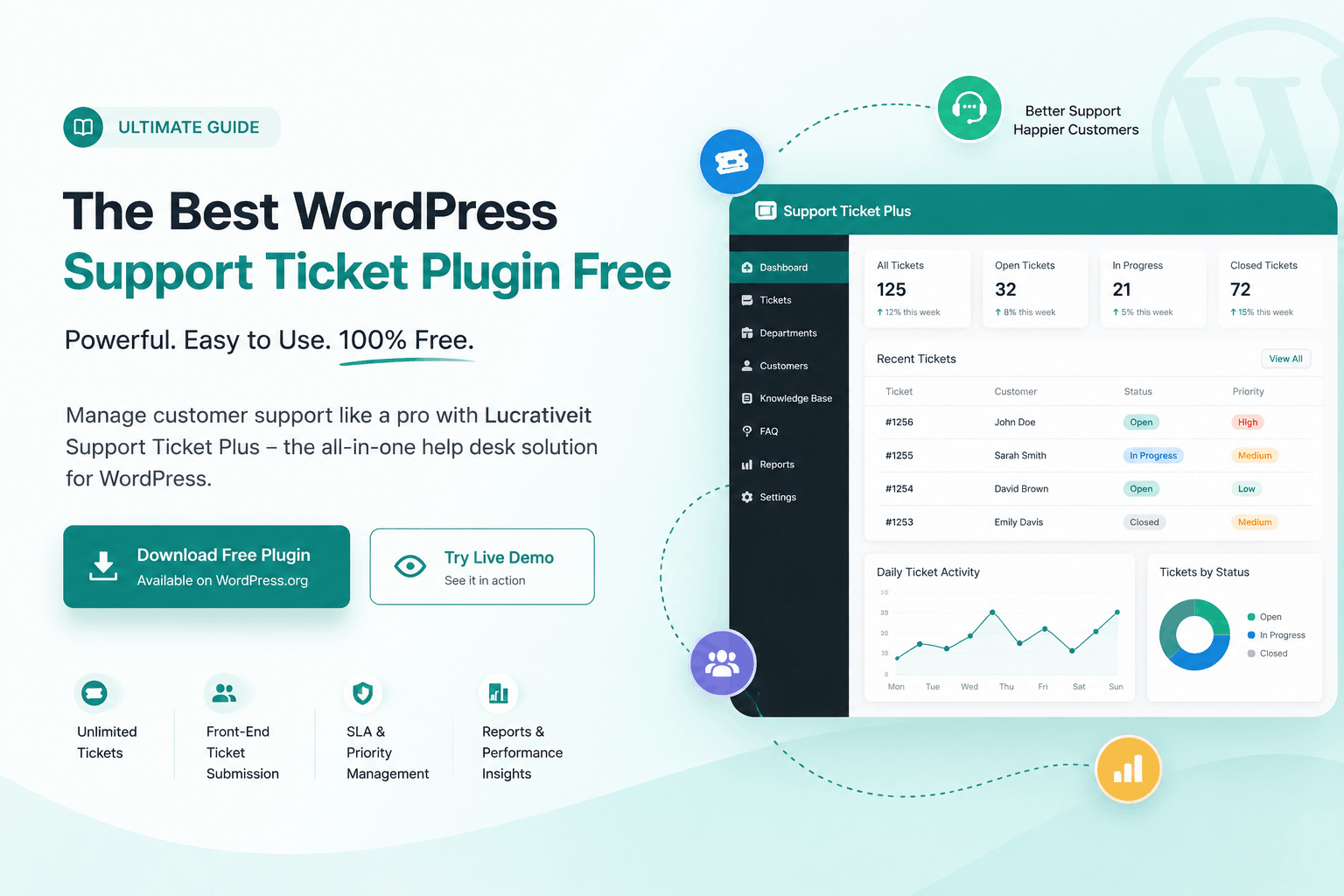
WordPress support ticket
WordPress Support Ticket Plugin Free: Build a Professional Help Desk Without the High Cost
Looking for a WordPress support ticket plugin free for your website? Discover Lucrativeit Support Ticket Plus, a complete WordPress help desk solution with unlimited tickets, guest support, SLA tracking, departments, knowledge base, live chat, reports, and more.
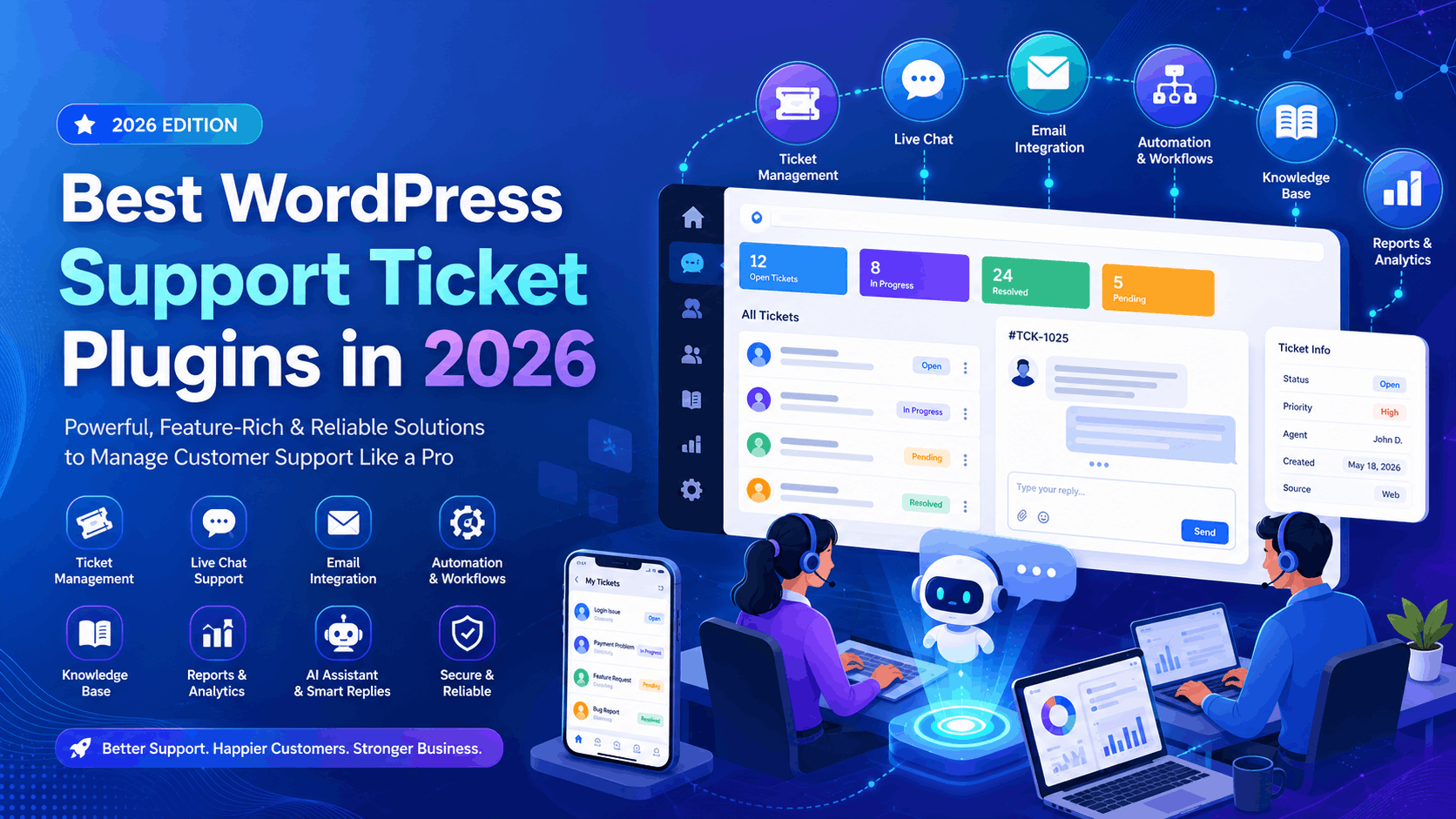
Wordpress Support Ticket
Best WordPress Support Ticket Plugins in 2026: 4 Options Compared
Zendesk, Fluent Support, Awesome Support, or a self-hosted plugin? We compare pricing, SLA tools, and setup for the top WordPress support ticket options in 2026 — and which one actually saves you money as you scale.
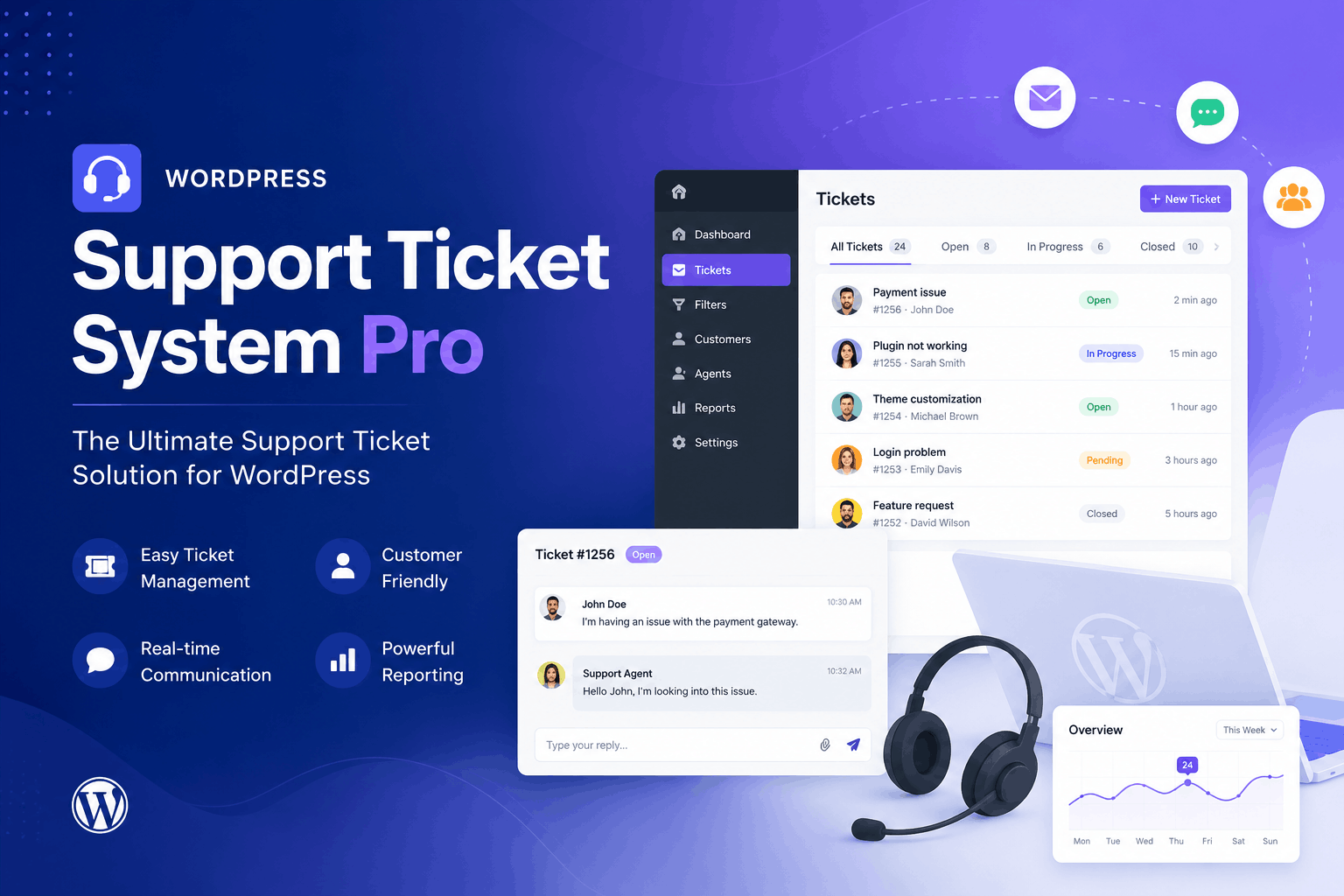
Wordpress Support Ticket
How AI Is Revolutionizing Customer Support with Support Ticket
Discover how AI is transforming customer support with LucrativeIt Support Ticket Plus Pro. Learn how AI-powered assistance, smarter ticket management, and automated workflows help businesses deliver faster responses, improve team productivity, and create better customer experiences directly inside WordPress.