WordPress Theme
Lit WooEvents — Product Specification
A native full-site editing theme for event discovery and ticketed bookings.
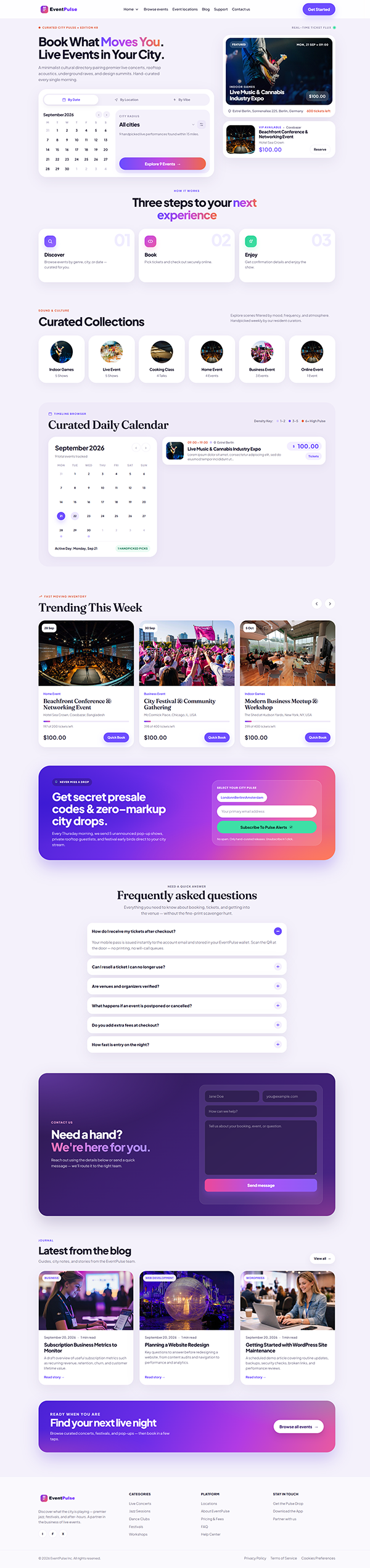
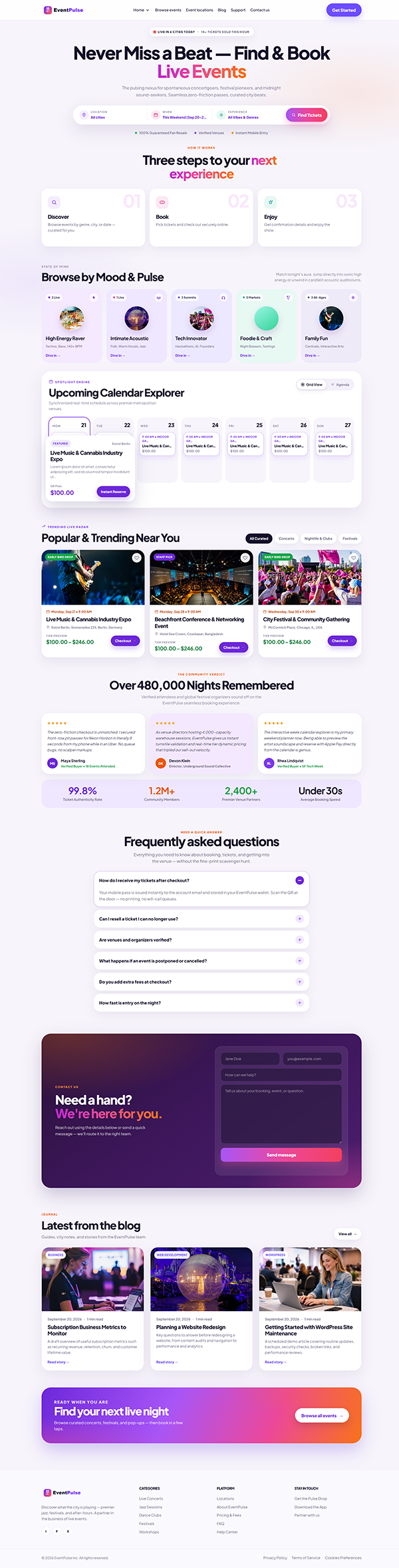
Ships as the EventPulse demo brand with browse, calendar, location, and support
pages — built to work with Mage EventPress (WpEvently), WooCommerce payments,
and Lucrativeit Support Ticket Plus.
By LucrativeIT.com ·
Spec version 1.2 · Theme version 2.2.34
WordPress 6.4+
PHP 7.4+
Version 2.2.34
License GPLv2 or later
Events Mage EventPress / WpEvently
Payments WooCommerce required
Support Support Ticket Plus
EventPulse branding
Purple accent, logo, starter pages
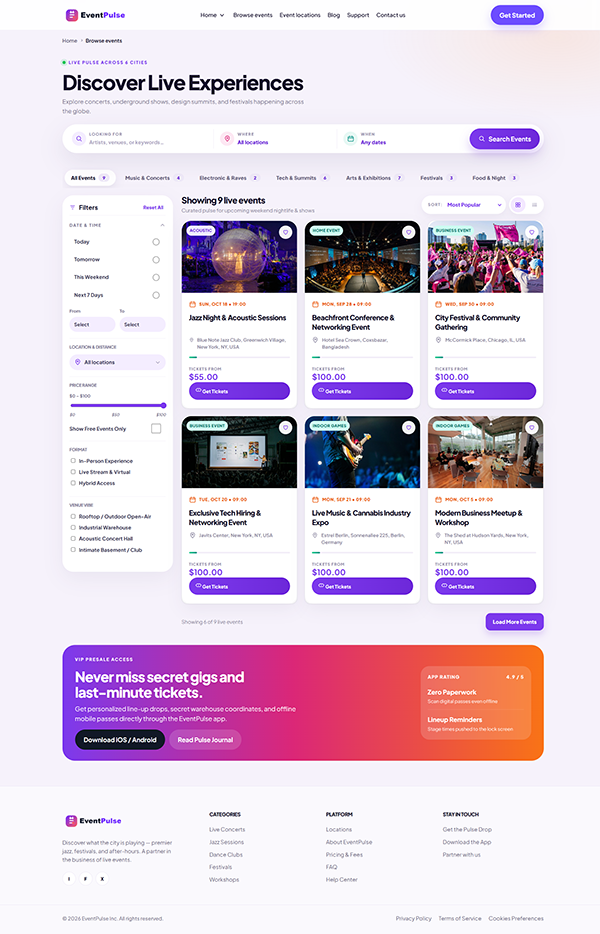
Browse events
Filters, free/paid, category dropdown
Calendar & locations
Month view and venue pages
Theme settings
Header, footer, FAQ, contact, SEO
EventPress tickets
Free and paid ticket types
WooCommerce pay
Cart, checkout, Stripe / PayPal
Support portal
Tickets, replies, knowledge base
Contact Form 7
Contact us page form
Native FSE
Block theme, no page builder
Two home layouts
Home and Home Page 2
Quick Setup
Plugin installer + payment check
Site Editor
Templates, menus, styles
Overview
Native block theme for event bookings
Lit WooEvents is a WordPress block theme. Header, footer, templates, and pages are edited with core blocks. Public branding ships as EventPulse.
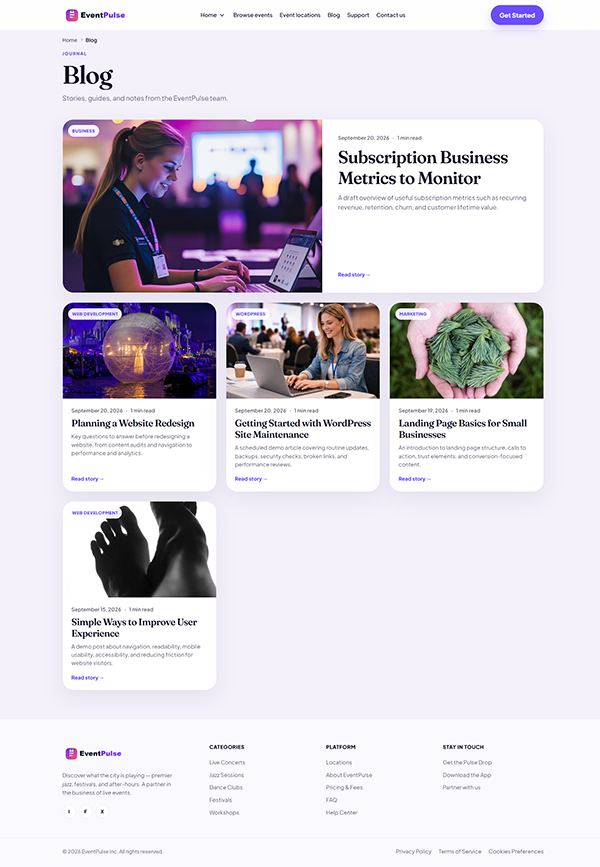
- Full site editing — front page, browse, locations, blog, support, contact, FAQ, and 404 templates.
- Events stack — Mage EventPress / WpEvently for event CPT, tickets, and attendee data.
- Payments — WooCommerce is required for paid tickets (install separately if missing).
- Support — Lucrativeit Support Ticket Plus portal at
/support/.
Architecture
How the pieces connect
Visitors browse and buy on the front end. Operators configure branding, events, payments, and support in WordPress admin.
- Visitor opens the site → Lit WooEvents renders listing and detail pages.
- Event data and tickets come from Mage EventPress / WpEvently.
- Paid checkout goes through WooCommerce → Stripe, PayPal, or another gateway.
- Support page loads the Support Ticket Plus portal for tickets and knowledge base.
- Admins use Theme Settings, EventPress, WooCommerce, and Support Ticket Plus screens.
Access
User roles
- Administrator — theme, plugins, WooCommerce, events, support permissions, orders.
- Shop Manager — WooCommerce orders and EventPress screens that use
manage_woocommerce.
- Event Editor — create and publish events, dates, venues, ticket types.
- Support Agent — Tickets permission granted under Support Ticket Plus → Roles (no separate WP role).
- Customer / Guest — buy tickets; open and reply to support tickets (guest magic link when enabled).
Setup
Initial activation checklist
- Activate Lit WooEvents under Appearance → Themes.
- Open Lit-WooEvents Theme Settings → Install plugins and activate EventPress, Contact Form 7, and Support Ticket Plus.
- Install WooCommerce separately (required for paid tickets).
- Confirm starter pages: Home, Home Page 2, Browse events, Event locations, Blog, Support, Contact us, FAQ.
- Set homepage and posts page under Settings → Reading, then save Permalinks.
Theme settings
Not the Customizer — use Theme Settings
Lit WooEvents does not implement the legacy Customizer API or widget areas. Configure the site under Lit-WooEvents Theme Settings, plus Appearance → Editor and Menus.
- Header — logo, width, brand name (default EventPulse), custom links or WP menu, CTA button.
- Footer — logo, description, socials, column menus, copyright, legal bar.
- FAQ / Contact / SEO — homepage FAQ blocks, contact details, meta defaults.
- Install plugins / Quick Setup — companion plugins and payment readiness checks.
Customize
Site Editor, menus, and pages
Visual layout work happens in the block Site Editor and on individual pages — not in Appearance → Customize.
- Appearance → Editor — templates, template parts, styles, and navigation.
- Appearance → Menus — Primary menu and footer column menus when Theme Settings uses a WP menu.
- Pages — edit Home, Browse events, Support, Contact, FAQ copy and block layouts.
- theme.json — palette and typography tokens for EventPulse purple branding.
Front end
Browse events listing
The Browse events page is the primary discovery surface. Filters sync to the URL so shares keep the same view.
- Category dropdown and free / paid filters with live result counts.
- Card grid with image, date, venue, and price cues.
- Scroll reveal uses a zero threshold so tall sections stay visible.
- Mobile: horizontal tab scroller; filters collapse behind a compact control.
Events
Create and publish events
Events are managed in Mage EventPress / WpEvently. The theme displays published events; it does not replace the EventPress admin UI.
- Open the EventPress events screen and add a new event.
- Set title, description, featured image, category, and venue / location.
- Configure start and end dates (and recurrence if used).
- Add ticket types: free or paid, capacity, and price.
- Publish. Confirm the event appears on Browse events and the single event template.
Launch blocker
WooCommerce payments for paid tickets
Paid EventPress tickets create WooCommerce products and orders. Without WooCommerce active and a gateway configured, paid checkout cannot complete.
- Install WooCommerce — not always listed in the theme plugin installer; install from Plugins or Quick Setup payment warning.
- Gateways — Stripe, PayPal, or another WooCommerce payment method in live or test mode.
- Currency & pages — Cart, Checkout, and My Account pages assigned; currency matches ticket prices.
- Free tickets — can register without a payment gateway; paid tickets still need WooCommerce.
- Orders — WooCommerce order status drives confirmation; verify EventPress confirmation settings against order status.
Checkout
Visitor ticket purchase path
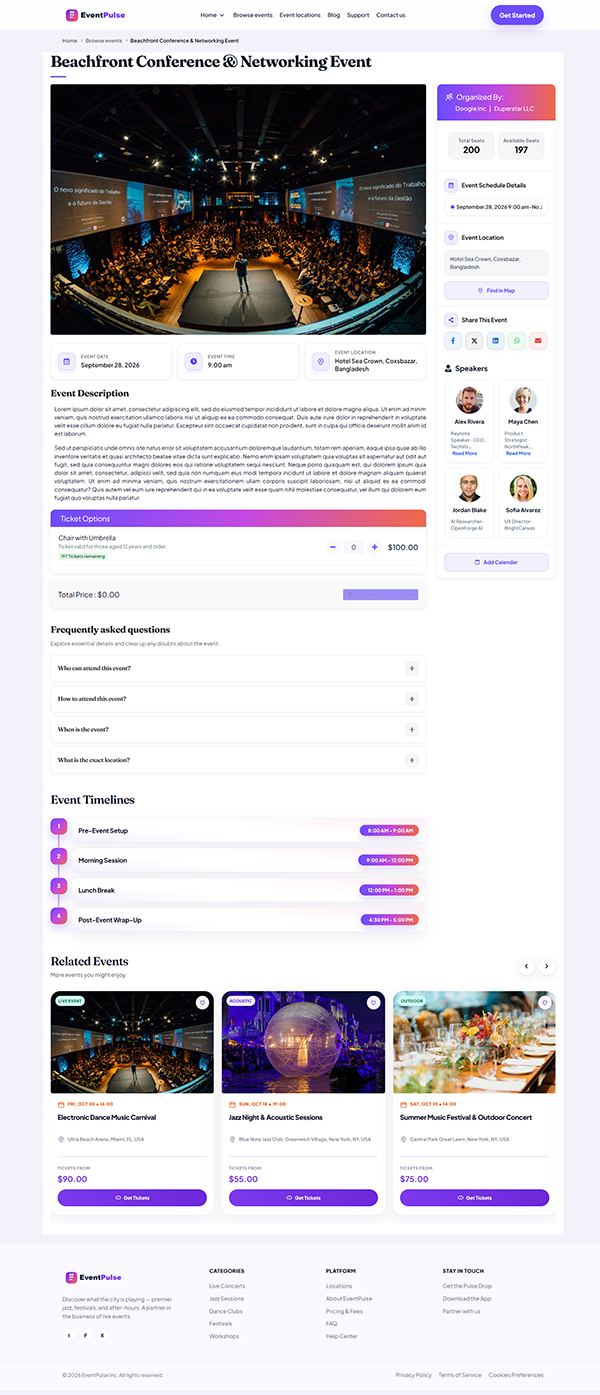
- Open an event detail page and choose a ticket type and quantity.
- Add to cart — EventPress hands off to WooCommerce.
- Complete checkout with the configured payment gateway.
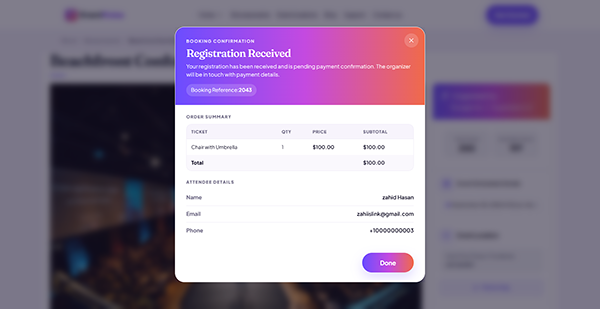
- Order reaches a paid / processing status; EventPress records the attendee.
- Customer receives confirmation email; admin sees the order and attendee list.
Support
Support Ticket Plus portal
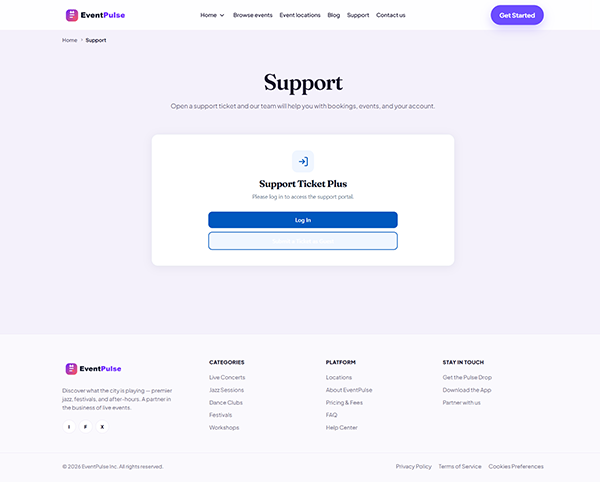
The Support starter page embeds the Lucrativeit Support Ticket Plus portal (typically at /support/). Customers open tickets; agents reply from admin or email.
- Customers — create tickets, view own threads, reply, use knowledge base.
- Guests — optional name/email submit with magic-link access.
- Agents — grant Tickets permission under Support Ticket Plus → Roles.
- Admin — departments, priorities, email notifications, and portal pages.
Discovery
Locations and calendar
Event locations and calendar views help visitors find when and where events run.
- Event locations — venue listing and detail pages seeded as starters.
- Calendar — month grid sized so all seven day columns fit on desktop without horizontal overflow.
- Categories — EventPress taxonomies power listing filters and related browse states.
Go-live
Pre-launch verification
- Theme Settings branding matches the client (logo, colors, CTA).
- EventPress events publish and appear on Browse events / calendar.
- WooCommerce + gateway: complete a test paid ticket purchase.
- Free ticket registration works without a payment gateway.
- Support portal creates tickets; agents can reply; CF7 submits on Contact us.
- Permalinks saved; no event detail 404s; HTTPS and emails deliver.
FAQ
Common questions from setup and handoff.
Where do I change the logo and header CTA?
Open Lit-WooEvents Theme Settings → Header. Upload the logo, set brand name visibility, choose custom links or a WordPress menu, and configure the call-to-action label and URL. Do not look for these in Appearance → Customize.
Why are paid tickets failing at checkout?
Paid tickets require WooCommerce to be installed and active, with Cart/Checkout pages set and at least one payment gateway enabled. The theme plugin installer may not install WooCommerce automatically — install it separately, then re-test a paid ticket.
Do free events need WooCommerce?
Free ticket registration can work without a payment gateway. You still need EventPress active. Keep WooCommerce ready if any ticket type is paid.
Where is the support help desk?
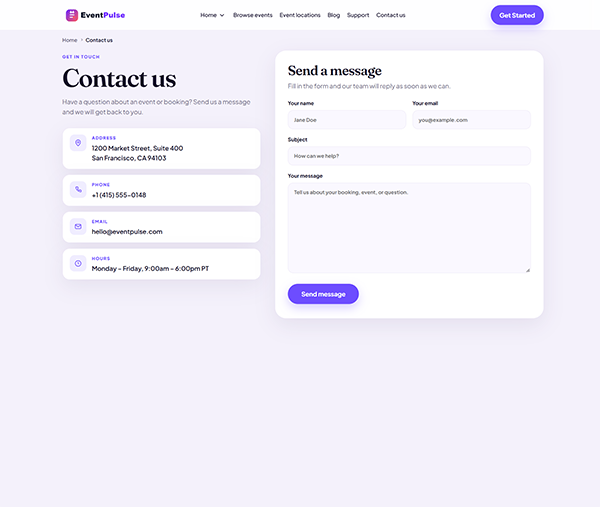
Use the Support starter page (usually /support/). It loads Lucrativeit Support Ticket Plus. Grant agent access under Support Ticket Plus → Roles. Contact Form 7 on Contact us is for simple inquiries, not the full ticket portal.
Event detail pages return 404
Open Settings → Permalinks and click Save Changes. Confirm EventPress is active and the event is published. Then retest the single event URL.
Is this a page-builder theme?
No. Lit WooEvents is a native full-site editing block theme. Edit templates in Appearance → Editor and pages with core blocks. Companion plugins handle events, payments, and support.