
How to Sell Subscriptions on WordPress Without WooCommerce
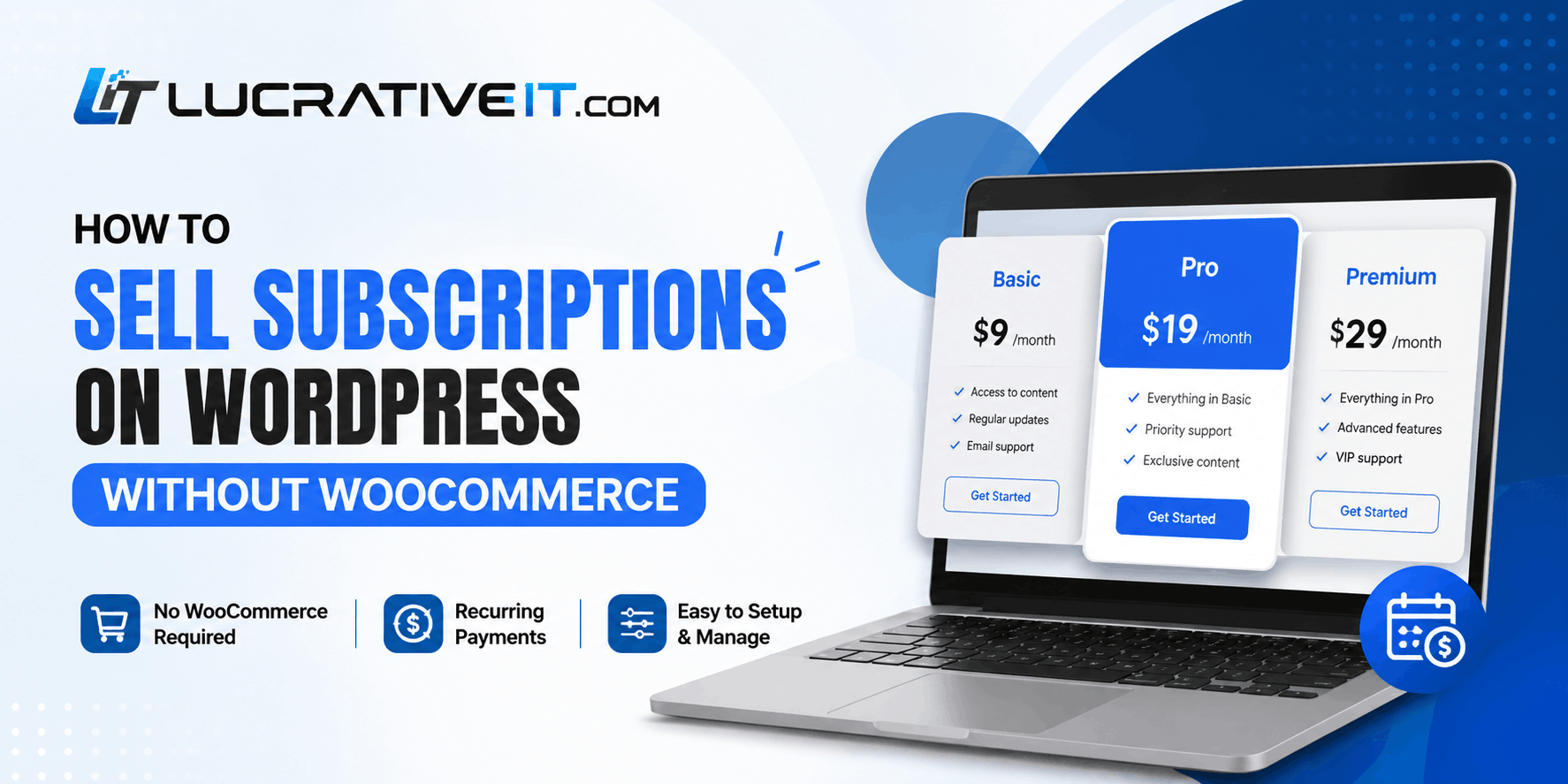
If you've looked into selling subscriptions on WordPress, you've probably run into the same wall: most guides assume you're already running WooCommerce, and then point you toward the WooCommerce Subscriptions extension — a paid add-on that only works on top of a full store setup you may not want or need.
That's overkill if you're selling gym memberships, coaching plans, SaaS access, ISP packages, or software licenses and don't sell physical products. What you actually need is a plugin that can create plans, bill customers on a schedule, and put a pricing page on your site — nothing more.
This guide walks through doing exactly that with Lucrativeit Subscription & Recurring Billing (WPBillify), a self-contained WordPress subscription plugin with its own billing engine and payment gateways built in.
Why Skip WooCommerce for Subscriptions
No store to maintain
WooCommerce is built for product catalogs, carts, and shipping — none of which a subscription business needs.
No add-on stacking
WooCommerce Subscriptions is a paid extension on top of a paid ecosystem of extensions. A dedicated plugin bundles billing logic natively.
Built for recurring revenue
Dashboards built around MRR, ARR, and churn — not order counts and SKUs.
What You Actually Need to Sell Subscriptions on WordPress
- A way to define pricing tiers and billing intervals (monthly, yearly, etc.)
- At least one payment gateway that can charge — or invoice — on a schedule
- A checkout flow customers can use without leaving your site
- Somewhere to see active subscribers, revenue, and overdue invoices
WPBillify's free plugin covers all four out of the box.
Step-by-Step: Setting Up Subscription Billing on WordPress
1. Install and activate the plugin
Install Lucrativeit Subscription & Recurring Billing from the
WordPress.org plugin directory, or upload it manually to /wp-content/plugins/.
Activating it creates the database tables and default settings automatically — no manual configuration
needed to get started.
2. Run the setup wizard
After activation, a setup wizard offers ready-made demo packs — Gym Membership, Internet ISP, Online Coaching, SaaS Software, and Software License — each with sample plans, customers, subscriptions, and a public pricing page already built. Import one to see the structure, or choose Start with empty data and build your own from scratch.
3. Connect a payment gateway
Under Settings → Payment Gateways, enable at least one:
- Stripe — runs the subscription and charges the customer automatically each billing cycle, kept in sync via webhooks.
- Manual — emails an invoice with a payment link each cycle; the customer pays directly.
- PayPal, Razorpay, SSLCommerz — invoice-based payment links, useful for regional coverage.
All five gateways ship in the free version — none are locked behind Pro.
4. Create a plan category and pricing plans
Add a plan category (for example, "Membership Tiers"), then create plans inside it. Each plan can use a daily, weekly, monthly, yearly, or lifetime interval, include a free trial, and list its own features. The public pricing table automatically shows a tab for every interval that has at least one active plan.
5. Publish your pricing page
Click Create public pages on the Plan Categories screen to generate a WordPress page automatically, or drop a shortcode onto any existing page yourself:
[lsp_locations_plans category="your-category-slug"]
That renders the full layout — hero, locations (if you use branches), pricing table, and FAQ. Use
[lsp_plans category="your-category-slug"]
instead if you only want the pricing table and checkout, without the extra sections.
6. Customize the checkout experience
Under Settings → Frontend, adjust fonts, button colors, "Most Popular" badge styling, the hero banner, and FAQ content so the pricing page matches your site's branding instead of looking like a generic plugin template.
7. Test a subscription and track revenue
Run a test checkout on the live page to confirm the gateway, email confirmations, and invoice creation all work end to end. From there, the WpBillify dashboard tracks MRR, ARR, active subscriptions, churn, and revenue trends — everything you need to watch the business, not just the transactions.
Free vs. Pro: What You Get at Each Level
| Feature | Free | Pro Add-on |
|---|---|---|
| Stripe, Manual, PayPal, Razorpay, SSLCommerz gateways | ✅ | ✅ |
| Unlimited plans & daily–lifetime intervals | ✅ | ✅ |
| Setup wizard & demo data | ✅ | ✅ |
| Public pricing pages & shortcodes | ✅ | ✅ |
| Executive dashboard (MRR, ARR, churn) | ✅ | ✅ |
| Staff roles & module-level permissions | — | ✅ |
| Branded PDF invoices | — | ✅ |
| Email header logo & footer branding | — | ✅ |
| Automated renewal / overdue reminders | — | ✅ |
| Advanced reports with custom range & CSV export | — | ✅ |
FAQ
Can I sell subscriptions on WordPress without WooCommerce? +
Yes. A dedicated subscription plugin like WPBillify runs its own billing engine, checkout shortcodes, and payment gateways, so WooCommerce isn't required at all.
Which gateways charge customers automatically? +
Stripe supports automatic recurring card charges each cycle. Manual, PayPal, Razorpay, and SSLCommerz are invoice-based — a payment link is emailed each cycle and the customer pays manually.
Can I offer daily, weekly, or lifetime plans? +
Yes. Plans support daily, weekly, monthly, yearly, and lifetime intervals, and the pricing table shows a tab for every interval that has at least one active plan.
Is the free version enough to launch, or do I need Pro? +
The free plugin includes the full billing engine, five payment gateways, unlimited plans, the setup wizard, and public checkout pages — enough to launch. Pro adds staff roles, PDF invoices, email branding, automated reminders, and advanced filtered reports with CSV export.
Start Selling Subscriptions on WordPress Today
Install the free plugin and have a working pricing page in under an hour — or go Pro for staff roles, branded invoices, and automated reminders.
More articles
Continue reading
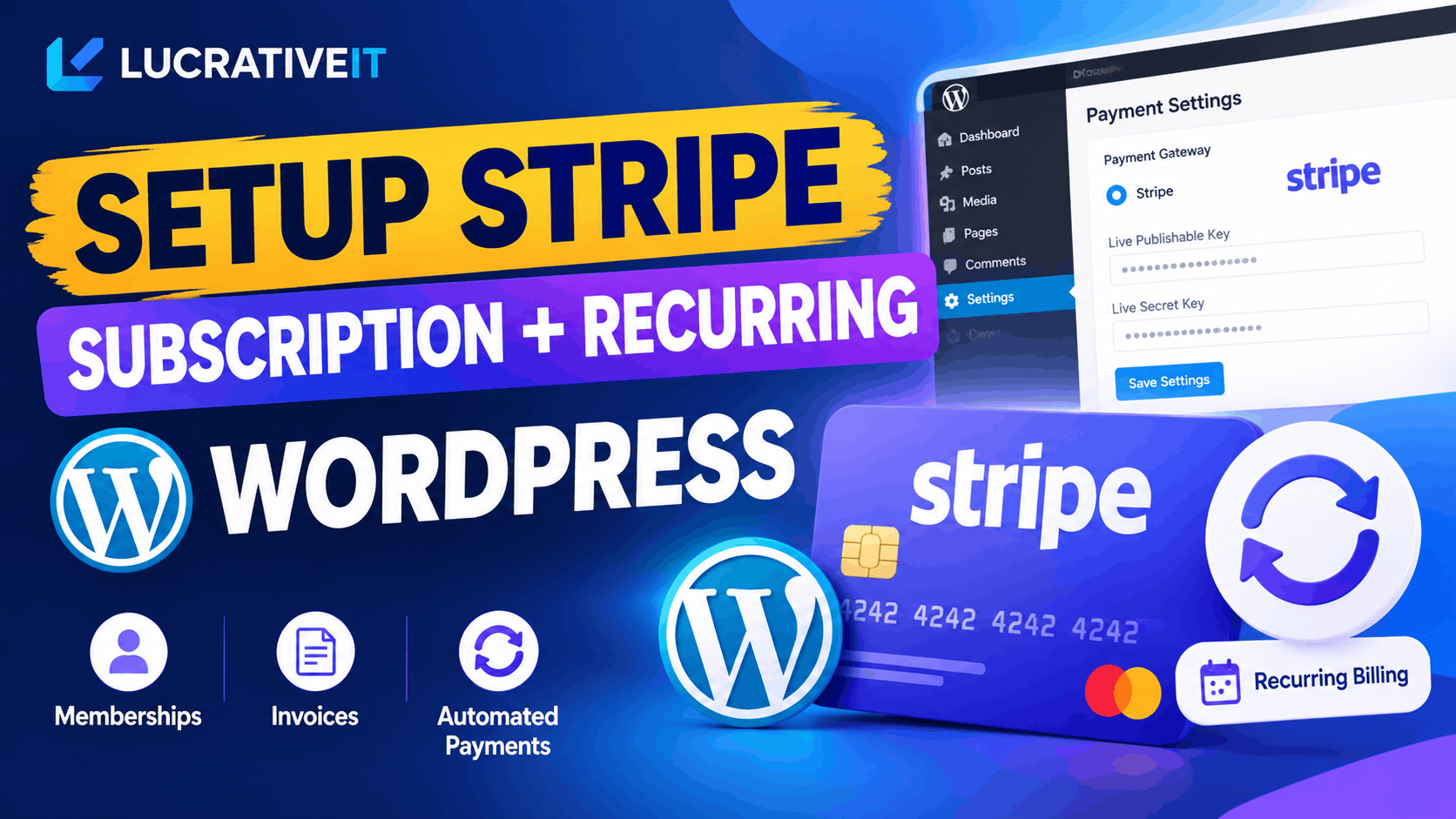
Subscription
How to Set Up Stripe for Subscription & Recurring Billing in WordPress
Learn how to connect Stripe to the Lucrativeit Subscription & Recurring Billing plugin in about five minutes — add your API keys to accept payments, then create a webhook so automatic renewals, failed payments, and cancellations sync to WordPress.
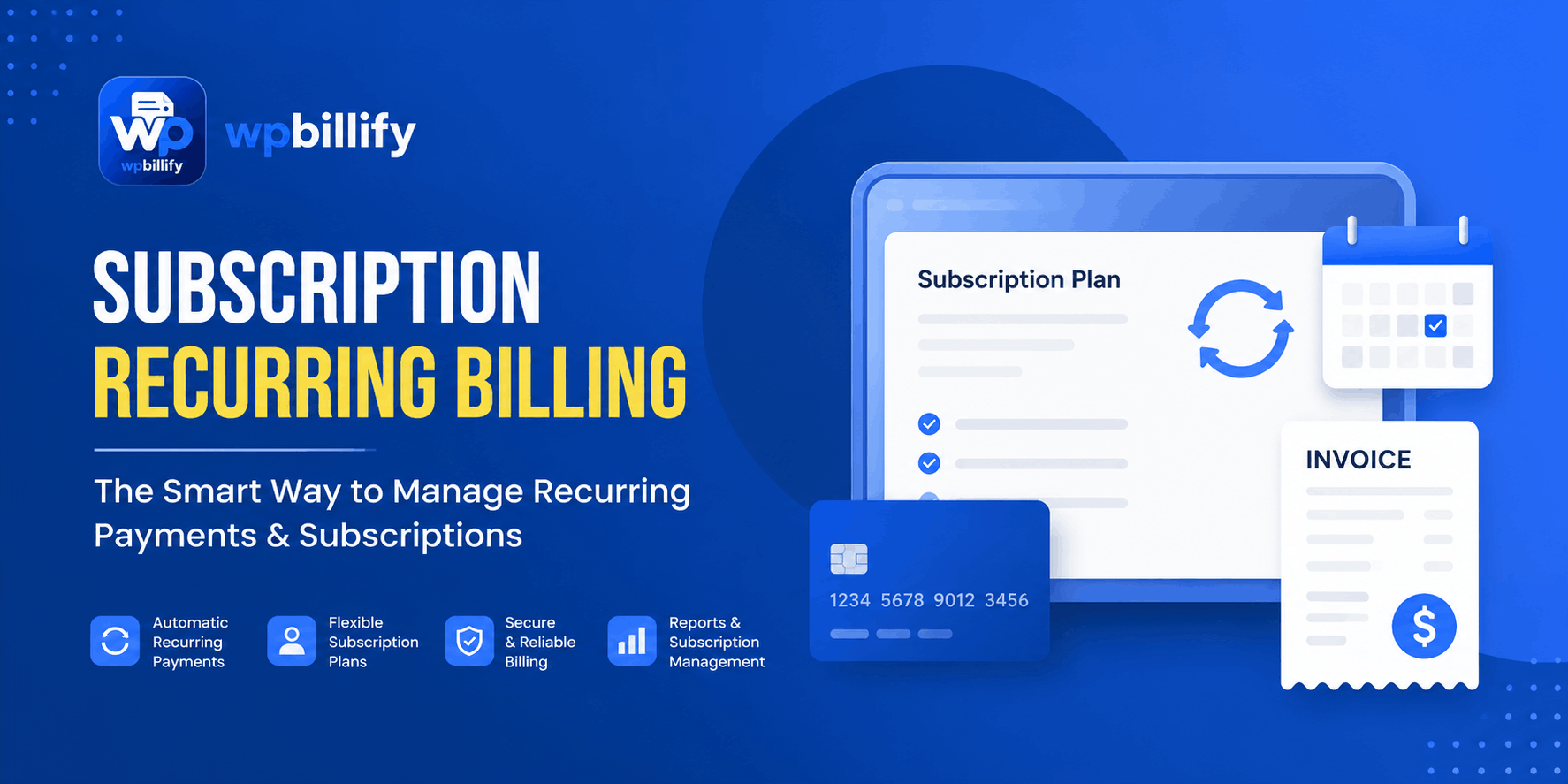
Subscription
How to Set Up Recurring Billing in WordPress
Looking for a reliable recurring payments WordPress plugin? This guide breaks down what to look for, how automated subscription billing works, and why WPBillify is built for memberships, SaaS, and invoicing sites that need dependable recurring revenue.
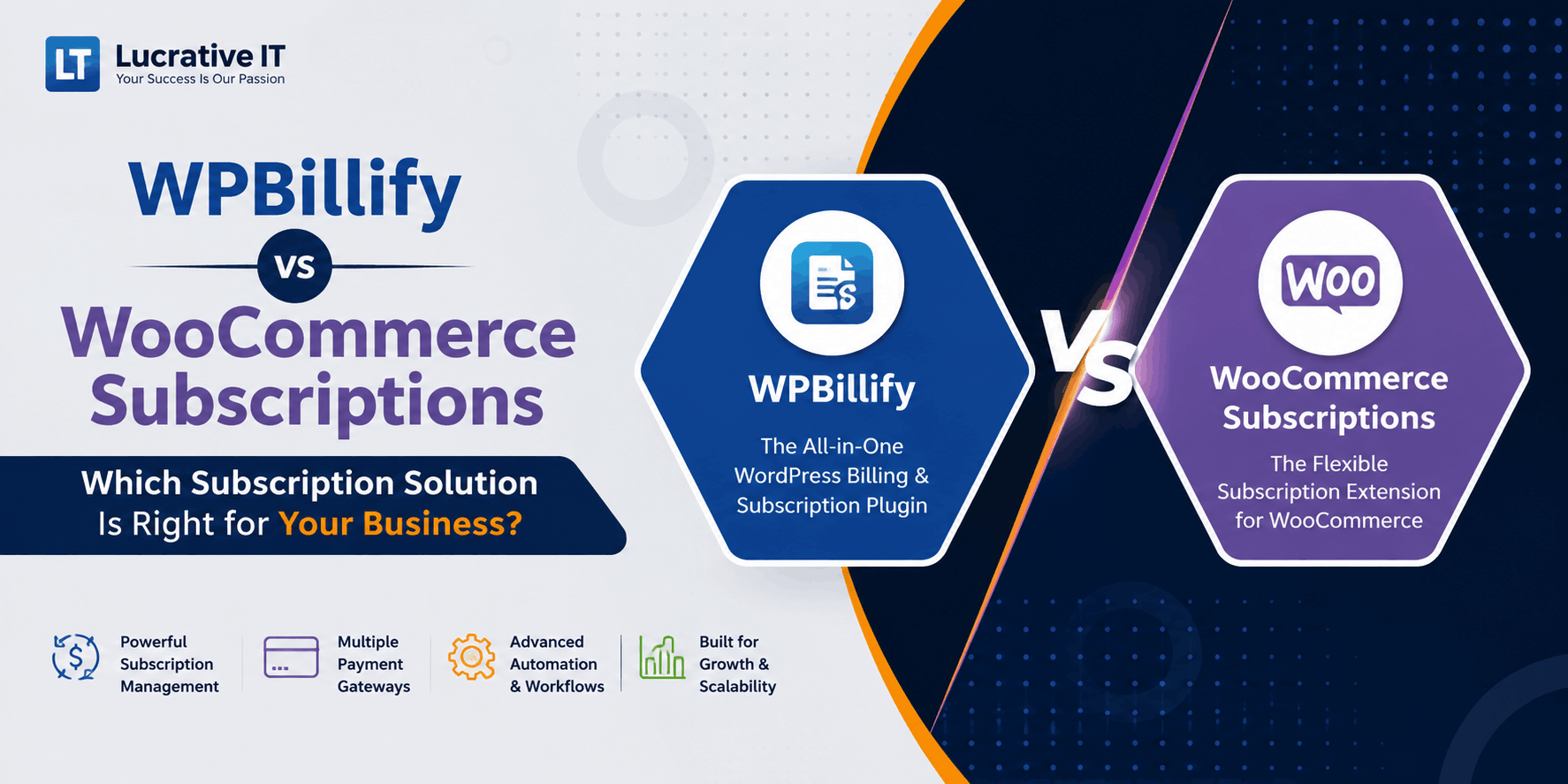
Subscription
WPBillify vs WooCommerce Subscriptions: Which Should You Use?
A feature-by-feature comparison of WPBillify and WooCommerce Subscriptions covering dunning management, customer billing portals, setup complexity, and total cost of ownership. Includes a quick-verdict box, comparison table, "who should use which" breakdown, and an FAQ section — built for anyone searching for a WooCommerce subscriptions alternative that bundles dunning and portal features instead of selling them as separate add-ons.