
How to Set Up Stripe for Subscription & Recurring Billing in WordPress
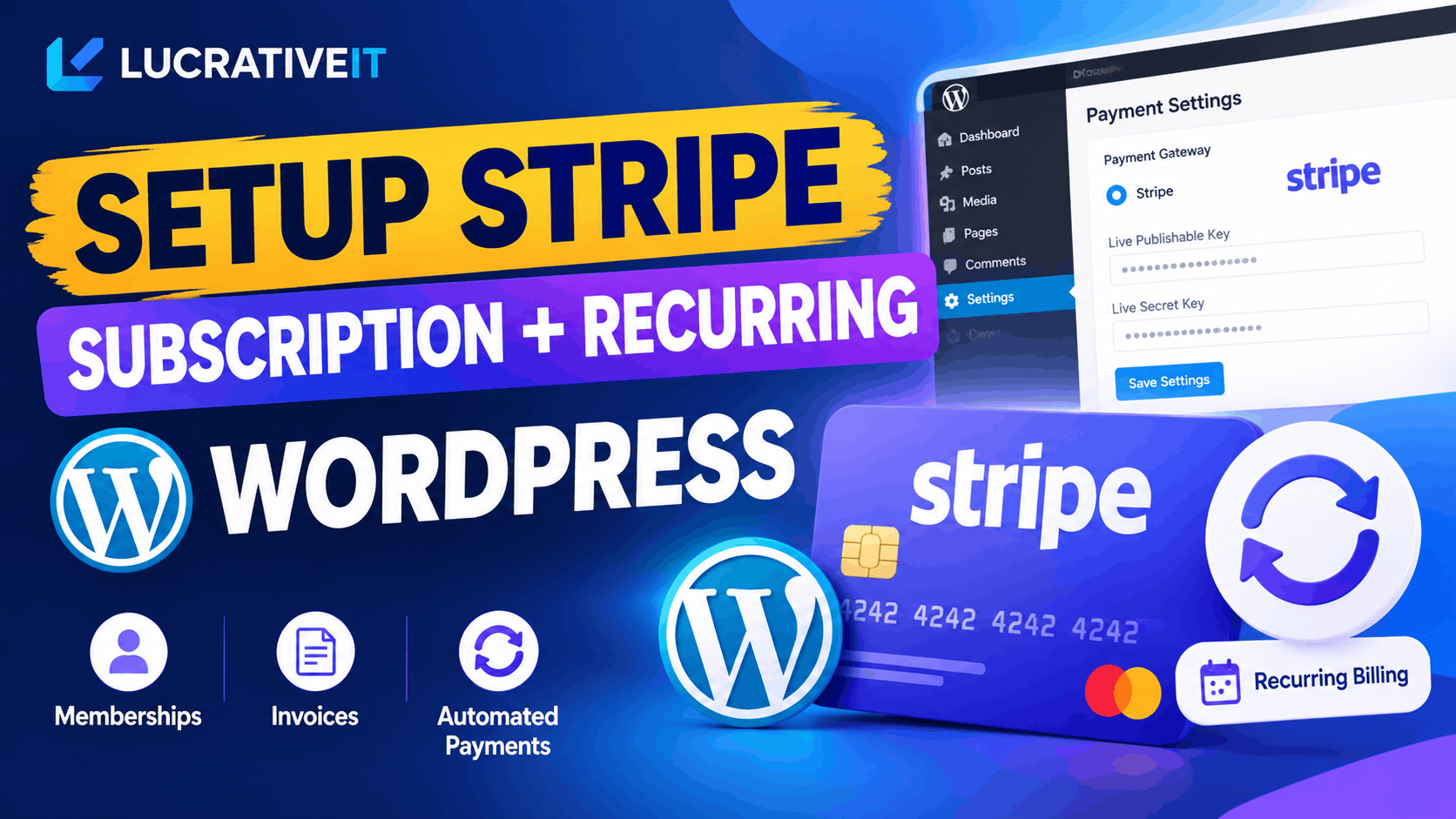
With Stripe connected, every subscription in Lucrativeit Subscription & Recurring Billing (WPBillify) renews on autopilot: Stripe runs the subscription and charges your customer automatically at every billing cycle, so renewals happen on their own with no invoices to chase. Connecting it takes two parts: adding your Stripe API keys so customers can pay, and creating a webhook so renewal payments made later by Stripe show up in your WordPress dashboard.
This guide walks through both parts step by step. The whole setup takes about five minutes, and you can follow along with the video below.
Before You Start
- The Lucrativeit Subscription & Recurring Billing plugin installed and activated on your WordPress site
- A Stripe account (free to create at stripe.com)
- Your site running on HTTPS, which Stripe requires for live payments and webhooks
Part 1: Connect Stripe with Your API Keys
1. Open the payment gateway settings
In your WordPress admin, go to Lucrativeit Subscription & Recurring Billing → Settings → Payment Gateway. You'll see a Stripe section with two empty fields: Secret Key and Publishable Key.
2. Find your keys in Stripe
Log in to your Stripe dashboard, open Settings, then go to
Developers → API keys (shown as Manage API keys). Stripe shows
your Publishable key (starts with pk_)
and, underneath, your Secret key (starts with
sk_). Click to reveal the secret key.
3. Paste both keys into the plugin and save
Copy each key into the matching field in the plugin and save. That's all it takes for customers to start paying for subscriptions with Stripe at checkout.
Part 2: Create a Stripe Webhook for Automatic Renewals
After the first payment, Stripe charges your customer on its own at the end of every billing interval, whether that's monthly or yearly. A webhook is how Stripe tells your WordPress site about those renewals. Without it, the payments still reach your Stripe account, but your plugin never hears about them.
1. Open Webhooks in Stripe
In the Stripe dashboard, search for Webhooks and open it, then click Add destination. Keep the default options.
2. Select the three events the plugin needs
The required events are listed on the plugin's Stripe settings screen. Search for and select each one:
invoice.payment_succeeded: a renewal payment went throughinvoice.payment_failed: a renewal payment was declinedcustomer.subscription.deleted: a subscription was cancelled
3. Paste your webhook endpoint URL
Click Continue and choose Webhook endpoint. Copy the endpoint URL from the plugin's Stripe settings. It's generated automatically for your domain. Paste it into Stripe.
4. Name it and create the destination
Give the destination a name you'll recognize, such as Billing, and click Create destination. Your Stripe setup is now complete.
What Happens Next
From now on, every time Stripe collects a renewal, the payment record appears automatically under the Billing tab in the plugin. Failed payments and cancellations are synced the same way, so your subscriber list and revenue figures stay accurate without manual updates.
FAQ
Do I need the webhook if customers can already pay? +
Yes. The API keys handle the first payment at checkout. The webhook is what records the automatic renewal payments, failures, and cancellations in WordPress afterwards.
Can I test before taking real payments? +
Yes. Switch Stripe to test mode and use the test keys (pk_test_
and sk_test_) with a test webhook. When everything
works, replace them with your live keys and create the webhook again in live mode.
Is Stripe available in the free version of the plugin? +
Yes. Stripe, along with Manual, PayPal, Razorpay, and SSLCommerz, is included in the free plugin.
Where can I see renewal payments? +
Under the Billing tab in the plugin. Each renewal Stripe collects is added there automatically once the webhook is connected.
Start Charging Subscriptions Automatically
Install the free plugin, connect Stripe in five minutes, and let renewals take care of themselves.
More articles
Continue reading

Subscription
How to Set Up Recurring Billing in WordPress
Looking for a reliable recurring payments WordPress plugin? This guide breaks down what to look for, how automated subscription billing works, and why WPBillify is built for memberships, SaaS, and invoicing sites that need dependable recurring revenue.
Subscription
How to Sell Subscriptions on WordPress Without WooCommerce
Don't want to bolt WooCommerce Subscriptions onto a full WooCommerce store just to bill customers monthly? This guide walks through selling subscriptions on WordPress without WooCommerce — using WPBillify's free built-in billing engine, payment gateways, and pricing-page shortcodes — from install to your first paying subscriber.
Subscription
WPBillify vs WooCommerce Subscriptions: Which Should You Use?
A feature-by-feature comparison of WPBillify and WooCommerce Subscriptions covering dunning management, customer billing portals, setup complexity, and total cost of ownership. Includes a quick-verdict box, comparison table, "who should use which" breakdown, and an FAQ section — built for anyone searching for a WooCommerce subscriptions alternative that bundles dunning and portal features instead of selling them as separate add-ons.